> For the complete documentation index, see [llms.txt](https://qubetics.gitbook.io/qubetics-docs/llms.txt). Markdown versions of documentation pages are available by appending `.md` to page URLs; this page is available as [Markdown](https://qubetics.gitbook.io/qubetics-docs/solvers-dashboard-user-guide/user-guide-step-by-step.md).
# User Guide - Step By Step
## Onboard on the Qubetics Solver Dashboard
#### Step 1: Open the Qubetics Solver Dashboard
The Solver Dashboard is where you register your node, manage liquidity, and track rewards. Open the dashboard, then proceed with the onboarding flow.
#### Step 2: Connect Your Wallet
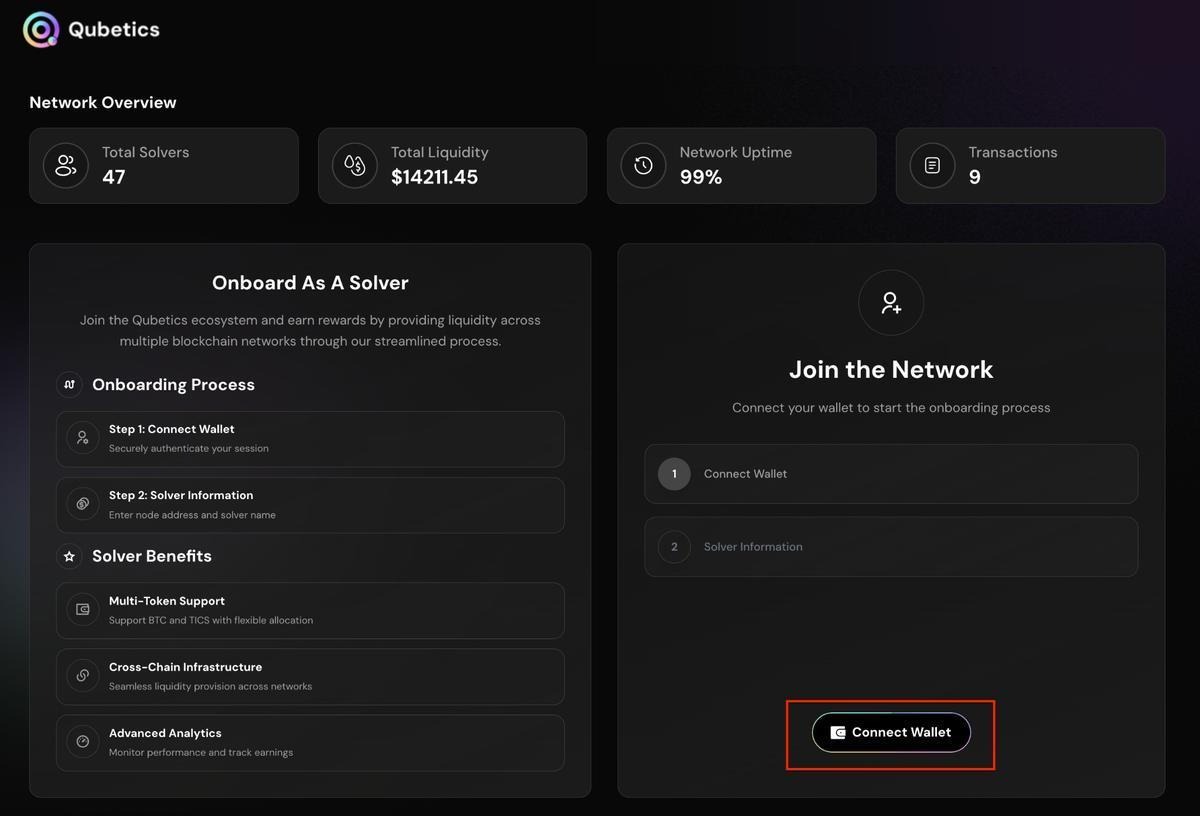
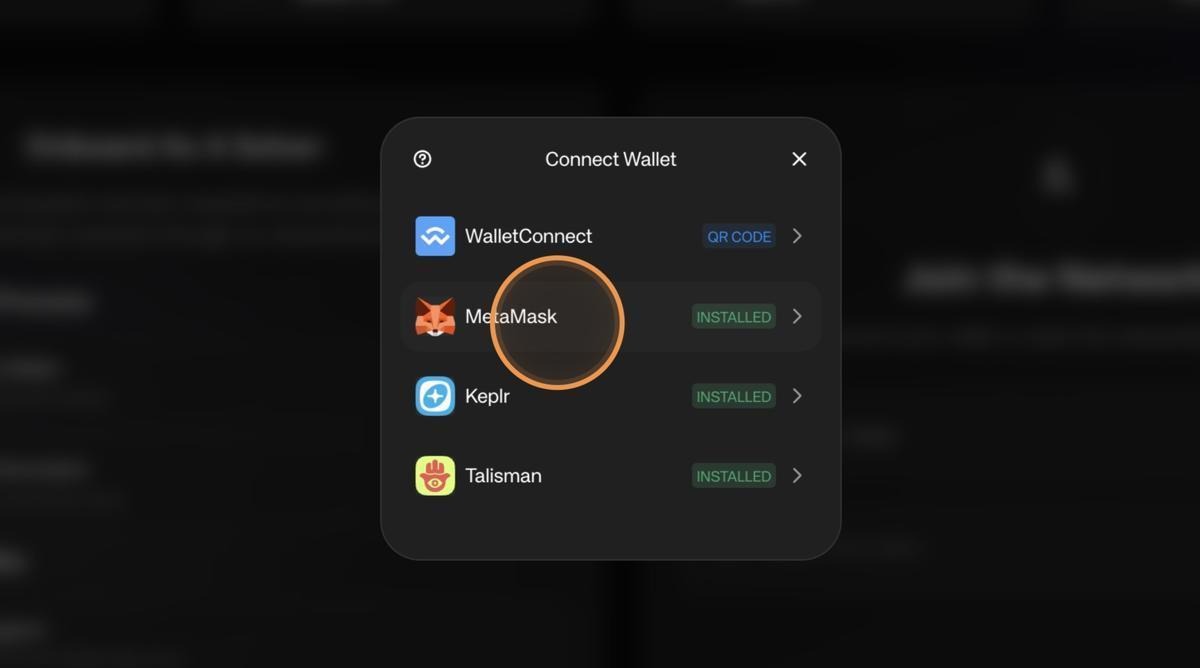
Click the Connect Wallet button on the dashboard. Once connected, your wallet address fills in automatically and becomes your solver identity on the network.
Connect wallet prompt on the Solver Dashboard
#### Step 3: Select Solver Type
After connecting your wallet, you’ll be asked to choose the type of solver you want to be in the network.
* If you are running a solver node and want to provide liquidity while earning higher rewards, select Run a Solver Node.
* If you only want to provide liquidity and earn passive yield without running a node, select Provide Liquidity.
Choose the option that matches how you want to participate, then continue with the onboarding process.
#### Step 4: Register Your Solver
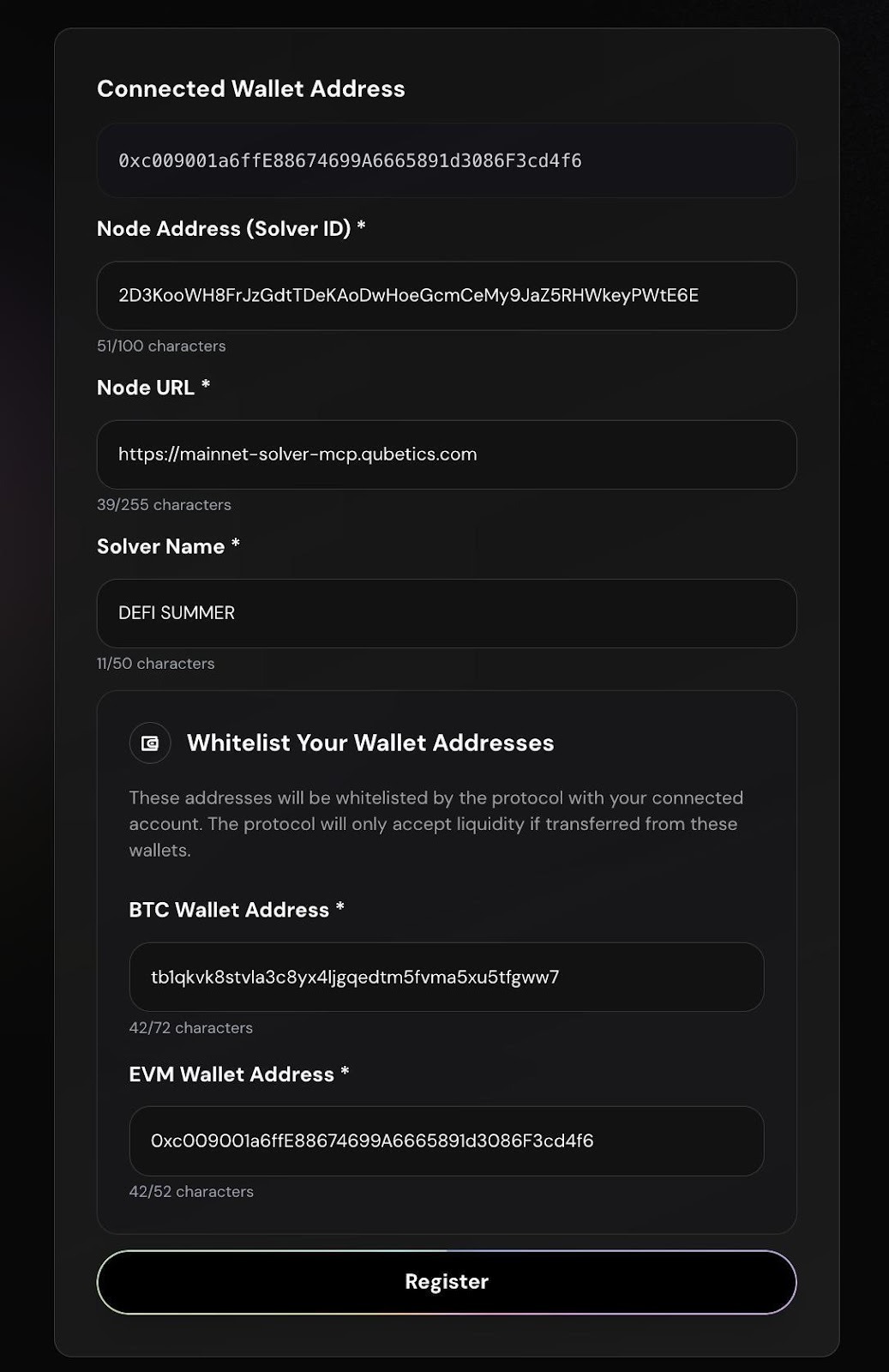
Complete the Solver Information form. All fields are required and must be unique across the network.
Solver Information form
| Connected Wallet Address | Auto-filled when your wallet connects |
| ------------------------ | ------------------------------------------------------------ |
| Node Address (Solver ID) | Copy from your VPS server terminal or InstaNodes credentials |
| Node URL | The HTTPS URL of your node (e.g. ) |
| Solver Name | A custom label — choose a unique name |
| BTC Wallet | Your whitelisted BTC wallet address for adding liquidity |
| EVM Wallet | Your whitelisted EVM wallet address for adding liquidity |
{% hint style="info" %}
Note: All field values must be new and unique. The platform will reject duplicate entries.
{% endhint %}
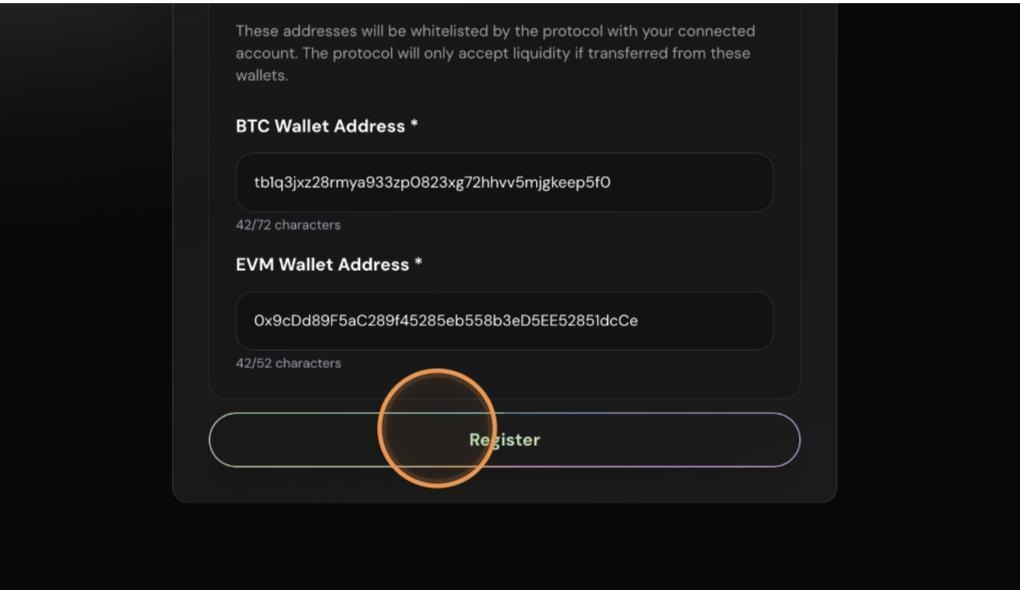
When the form is complete, click Register. Your wallet will prompt you to approve a transaction. This registers you in the solver network smart contract.
#### Step 5: Enter the Solver Dashboard
After registration, you are added to the solver network with a pending status. You must add liquidity to activate your solver. Click Go to Dashboard to continue.
Registration confirmed - click Go to Dashboard
The dashboard displays your registered details and current status:
* Node Status (Inactive until liquidity is added and verified)
* Liquidity Status (Inactive until liquidity is added and verified)
* Node Uptime
* Solver Rank on the leaderboard
* Recent Activity Log
## Managing Liquidity and Rewards
#### Step 1: Adding Liquidity
The solver network currently supports BTC and TICS. You must add both tokens to activate your solver status.
* On the dashboard, click Add next to the token you want to deposit.
* Check the minimum required amount shown for that token. You must meet this threshold.
* Tick the checkboxes and click Show Address. A deposit address appears on screen.
* Copy the address and transfer the required funds from your whitelisted wallet.
#### Step 2: Enter Your Deposit Amount
Tap **Add Liquidity** on your BTC balance card. Enter the amount of BTC you want to deposit. The minimum deposit is 0.000006 BTC.
At this stage, the system will let you know that a small additional verification amount will be calculated and added to your deposit in the next step. You won't see the exact figure yet, since it's generated after you continue.
Review the transfer instructions, accept the terms of service, and tap **Continue**.
> **Note:** If you already have a deposit request in progress, you'll see a warning asking whether to discard it and start a new one, or cancel and return to your existing request.
#### Step 2: Confirm Your Sending Address and Amount
Once the system calculates your total, you'll see a full breakdown:
* **Deposit Amount** — the amount you entered in Step 1
* **Verification Amount** — a small amount automatically added to confirm your deposit and verify wallet ownership
* **Total Amount to Send** — the sum of the two, and the exact figure you should send
This screen also reminds you to send only from your **whitelisted wallet address** — the same address you used during solver registration. Double-check that your wallet's "From" address matches before proceeding.
The total amount shown excludes network gas fees. Keep a little extra BTC in your wallet beyond the total so the exact amount is received after gas is deducted.
Confirm the checkbox and tap **I Understand** to proceed.
#### Step 3: Send the Funds
You'll now see the liquidity pool address as both a QR code and text, along with a quick summary of the total amount to send, the token, network, and your registered whitelisted address.
Send the exact total amount from your whitelisted wallet to the address shown. You can scan the QR code or copy the address directly.
#### Step 4: Wait for Confirmation
Once sent, you can safely close the window. The system monitors the Bitcoin blockchain in the background and will notify you once your transfer is confirmed and your liquidity is reflected in your account.
{% hint style="info" %}
Important: You must transfer funds from your registered whitelisted BTC or EVM wallet only. Transfers from other wallets are not recognized.
{% endhint %}
Once the transfer confirms on-chain, your balance updates on the dashboard and appears in the Recent Activity tab.
#### Step 2: Verifying Your Solver Status
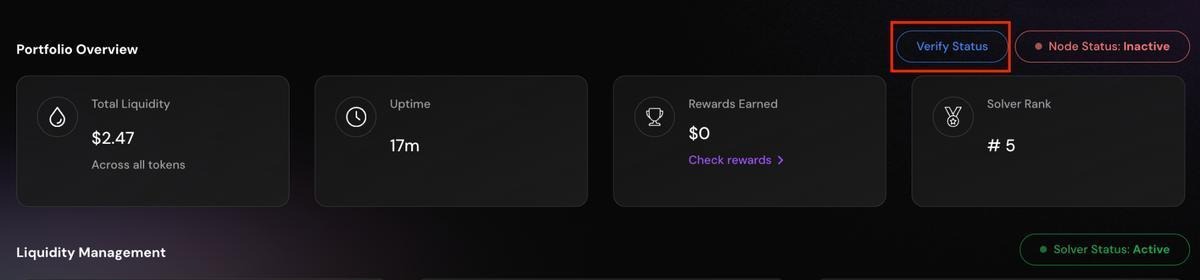
After liquidity is added, a Verify Status button appears next to your node status.
Verify Status button appears after liquidity is added
* Click Verify Liquidity.
* Approve the transaction in your wallet.
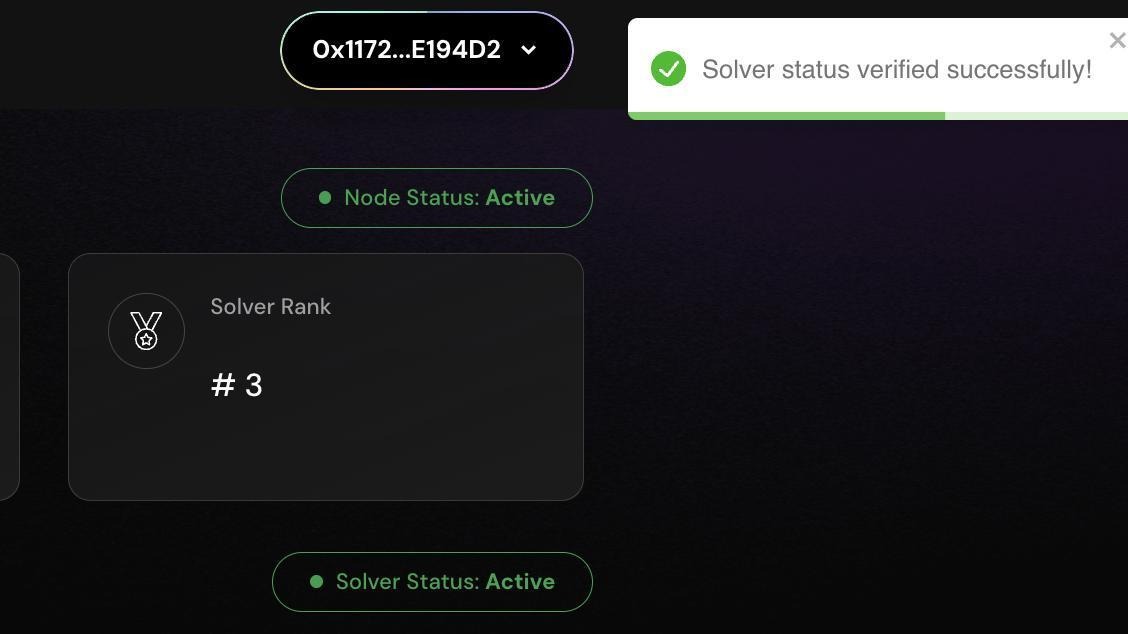
Once verified, your Node Status and Solver Status both change to Active. Your solver is now live on the network.
### Monitoring Rewards
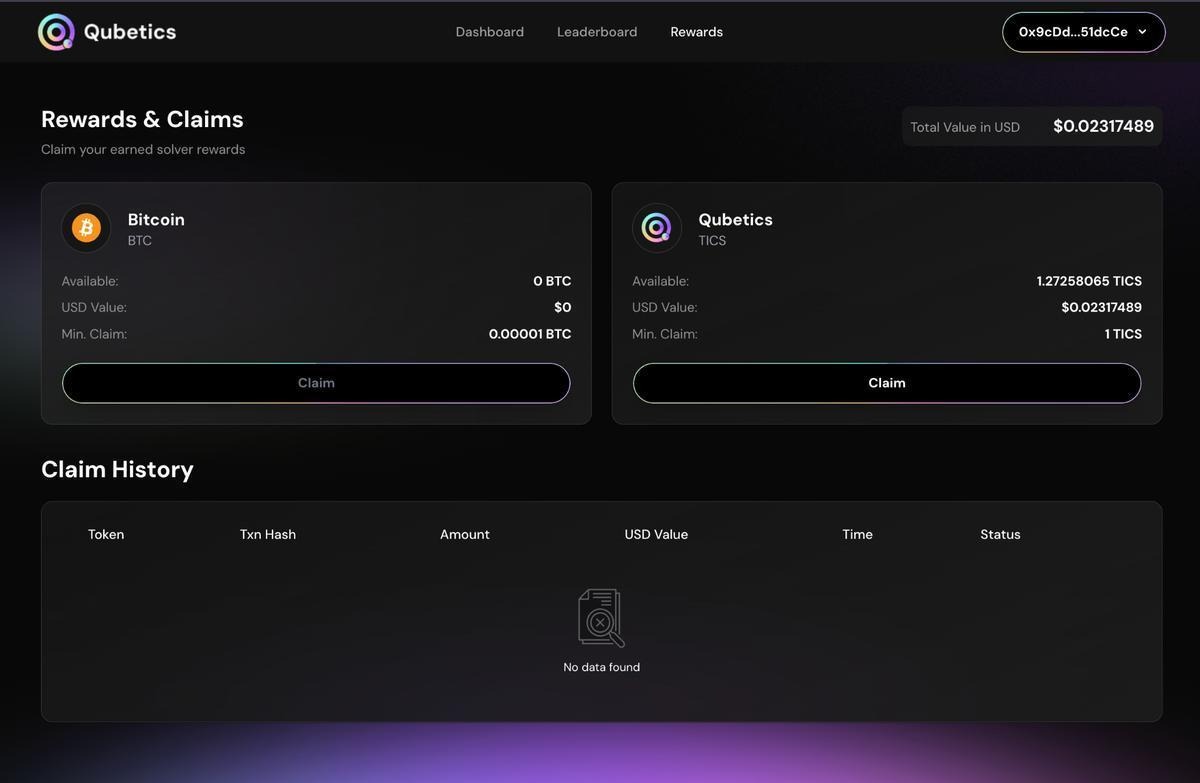
Rewards are tracked in real time on the Rewards tab. You will see the earned amount for each supported token.
| Available | The reward amount currently available to claim |
| --------- | ---------------------------------------------------------------------------------------------------------------- |
| Min Claim | The minimum balance required to trigger a claim. The Claim button stays disabled until this threshold is reached |
### Claiming Rewards
* Go to the Rewards tab.
* Find the token you want to claim.
* Click Claim. A confirmation screen shows the total amount and the network transaction fee.
* Click Confirm to submit your claim.
The claim is sent to the solver protocol for validation. Once validated, funds transfer to your whitelisted wallet. The transaction appears in your Claim History table.
{% hint style="info" %}
Note: The network transaction fee is deducted from the claim amount, not charged separately.
{% endhint %}
### Withdrawing Liquidity
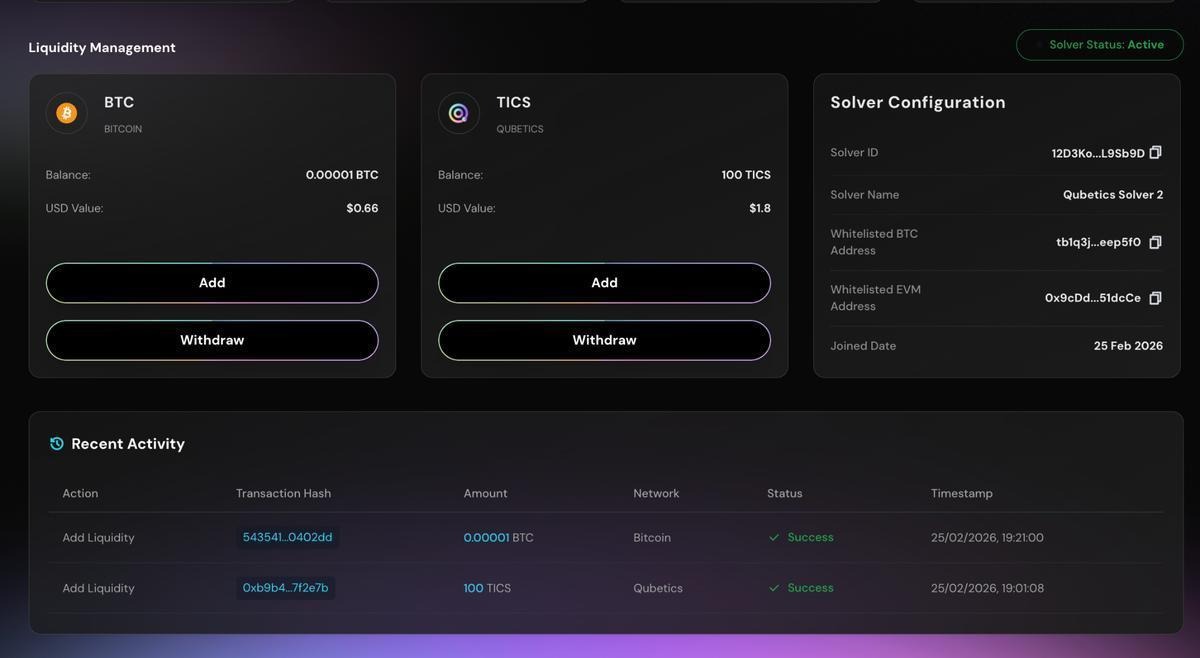
You can withdraw liquidity at any time from the Liquidity Management section.
* Click Withdraw next to the token you want to withdraw.
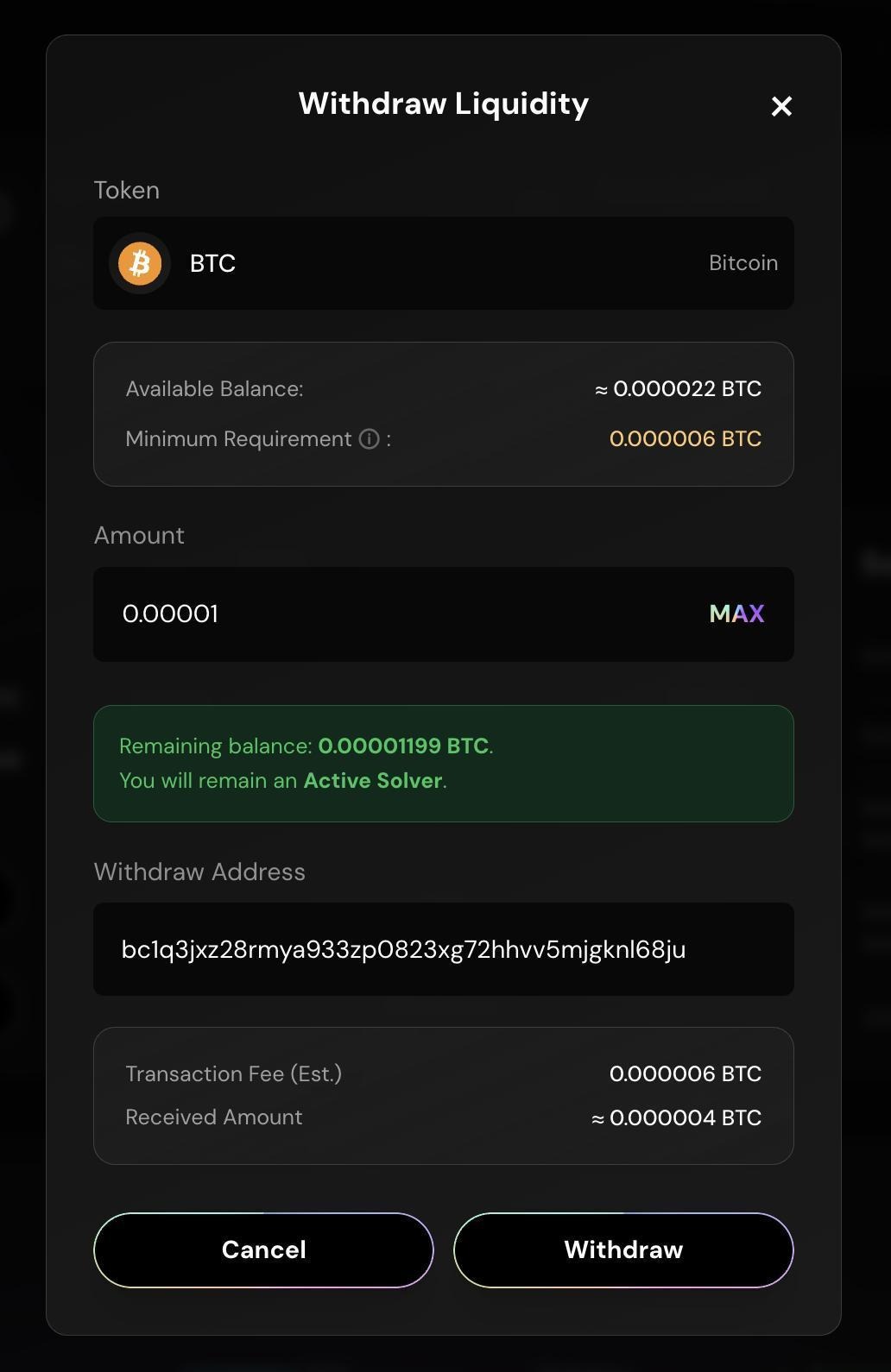
* Review the available balance, minimum requirement, withdrawal amount, and withdrawal address.
* Choose a withdrawal amount, then click Withdraw.
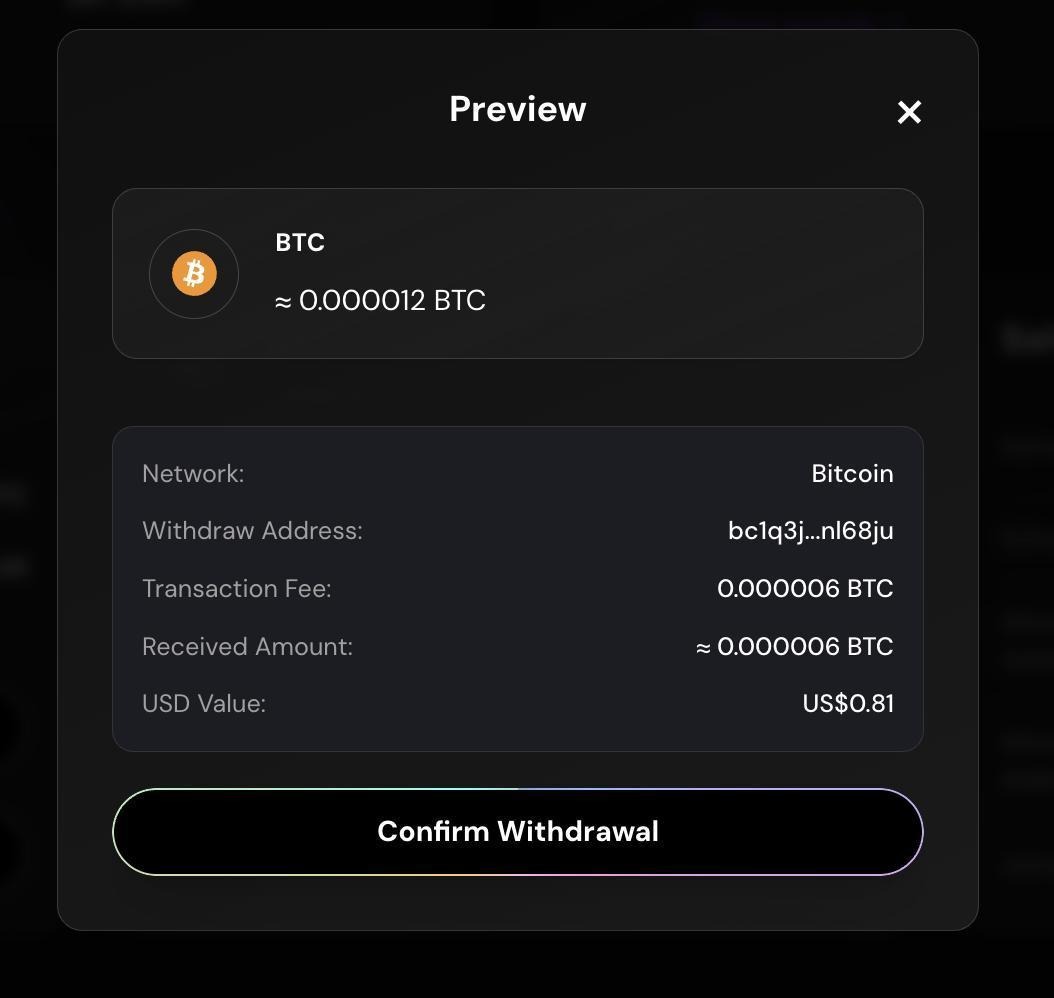
* Review the confirmation screen and click Confirm Withdrawal. Funds transfer to your withdrawal address.
Liquidity Management — click Withdraw to begin
| Partial withdrawal | Withdraw above the minimum threshold. Your solver stays active and continues earning rewards on the remaining balance. |
| ------------------ | ---------------------------------------------------------------------------------------------------------------------- |
| Full withdrawal | Withdraw the maximum amount. Your solver becomes inactive immediately. A warning appears before you confirm. |
Full withdrawal warning: solver becomes inactive
Partial withdrawal — solver remains active
Withdrawal confirmation — review amount and fee before confirming
Withdrawal processed — funds transferred to withdrawal address
{% hint style="info" %}
Note: The network transaction fee is deducted from the withdrawal amount at the time of processing.
{% endhint %}
## Dashboard Features Explained
The Qubetics Solver Dashboard has the following main sections.
#### Main Dashboard
Shows your current solver state at a glance. Displays Node Status, Liquidity Status, Node Uptime, and your Solver Rank on the leaderboard. The Recent Activity log lists your latest transactions including deposits, claims, and withdrawals.
#### Solver Information
The registration form where you enter your Node ID, Node URL, Solver Name, and whitelisted wallet addresses. Completed once during initial onboarding.
#### Liquidity Management
Displays your current liquidity balance for each supported token. Use this section to add or withdraw liquidity. The minimum threshold for each token is shown here.
#### Rewards Tab
Tracks your earned rewards in real time. Shows the available amount per token and the minimum claim threshold. Use this section to submit a claim.
#### Claim History
A log of all past claims. Shows the amount, token, transaction fee, and transfer status for each claim.
#### Recent Activity
A live feed of all actions on your solver account. Includes liquidity additions, claims, cross-chain solver actions, and withdrawals.\
---
# Agent Instructions
This documentation is published with GitBook. GitBook is the documentation platform designed so that both humans and AI agents can read, navigate, and reason over technical content effectively. Learn more at gitbook.com.
## Querying This Documentation
If you need additional information that is not directly available in this page, you can query the documentation dynamically by asking a question.
Perform an HTTP GET request on the current page URL with the `ask` query parameter, and the optional `goal` query parameter:
```
GET https://qubetics.gitbook.io/qubetics-docs/solvers-dashboard-user-guide/user-guide-step-by-step.md?ask=&goal=
```
`ask` is the immediate question: it should be specific, self-contained, and written in natural language.
`goal` is optional and describes the broader end goal you are ultimately trying to accomplish on behalf of the user. GitBook uses it to tailor the answer towards what is most useful for that goal.
The response will contain a direct answer to the question and relevant excerpts and sources from the documentation.
Use this mechanism when the answer is not explicitly present in the current page, you need clarification or additional context, or you want to retrieve related documentation sections.