

| Module | Description |
| Name | Enter a display name for your service provider profile. This helps node operators find and choose you when leasing their nodes in the Qubetics dVPN. |
| Email Address | Enter your email. Qubetics will use this to send important updates and notifications related to your service provider account. |
| Website URL | You can add your organization’s website link. This information is stored on-chain. |
| Submit Button | After filling in all required fields, the “Submit” button will become active. Click it to complete your service provider registration. |

| Section | Description |
|---|---|
| Navbar | The navbar shows the service provider’s balance and wallet address from their Keplr wallet. It also has a logout option. Clicking logout will sign the service provider out of the panel, disconnect the wallet, and redirect them back to the service provider panel landing page. |
| All Nodes | Shows the total number of nodes irrespective of their status (e.g., 60). |
| Active Nodes | Shows the total number of active nodes currently connected and providing service (e.g., 50). |
| Inactive Nodes | Shows the total number of inactive nodes currently not connected and providing service (e.g., 10). |
| Node Request Table | This section lists all incoming requests from users who want to operate or manage dVPN nodes. Each row in the table represents a single request, containing details of the request. |
| Operator Name | The operator name associated with the node (e.g., Mysterium, Qubetics-1). |
| Email Address | The email ID of the requester, used for communication and approval status updates (e.g., sam@gmail.com). |
| Location | The country from where the node is being deployed (e.g., India, China). |
| Node Address | The unique node address generated when the user ran the setup script (e.g., qubeticsnode1...cyr1239wc). |
| Bandwidth | The bandwidth allocated for this node (e.g., 100 GB, 1TB). |
| Plan | The pricing plan selected by the user while registering shows the cost in TICS tokens (e.g., 1000 TICS/month). |
| Request Type | Indicates the type of request made:
|
| Action | Each request has two action buttons for the provider:
|

| Section | Description |
|---|---|
| Create Plan Button | Located on the top-right corner, the “Create Plan” button allows the provider to set up new subscription packages. |
| Plan ID | A unique identifier for each plan (e.g., PI1209). |
| Price | The cost of the plan, charged monthly in TICS tokens (e.g., 1000 TICS/month). |
| Bytes | The data bandwidth-wise price assigned to the plan (e.g., 1000 MB). |
| Creation Date | The exact date and time when the plan was created (e.g., 2024-09-28 04:14 am). |
| Duration | The usage validity period (e.g., 24 hours). |
| Action | Activate: This button allows the provider to activate a plan so that it becomes available for node operators and end users. Activated: This status shows that the plan is already active and cannot be reactivated. |

| Section | Description |
|---|---|
| Plan Price | The first field in the form is Plan Price, where the provider enters the cost of the plan in TICS tokens. This value determines how much a user will need to pay in order to access the plan. For example, a provider might set the plan price as 1000 TICS/month depending on the bandwidth and duration being offered. |
| Plan GB | The provider specifies the Plan GB, which defines the amount of data included in the plan. This value is entered in gigabytes (GB), although it can also be set as megabytes (MB) if required. For example, the provider might enter 10 GB or 1000 MB to represent the bandwidth allowance that end users can consume under this plan. |
| Duration | Allows the provider to set the duration for which the plan will remain active once purchased. The provider need to choose from these 3 options: 1. 30 Days 2. 60 Days 3. 90 Days |
| Create Button | The provider completes the process by clicking the Create button. Once clicked, the system validates all inputs. If the details are correct, the new plan is added to the Plans List and becomes available for node providers and end users. Once submitted, a success pop-up will appear. |
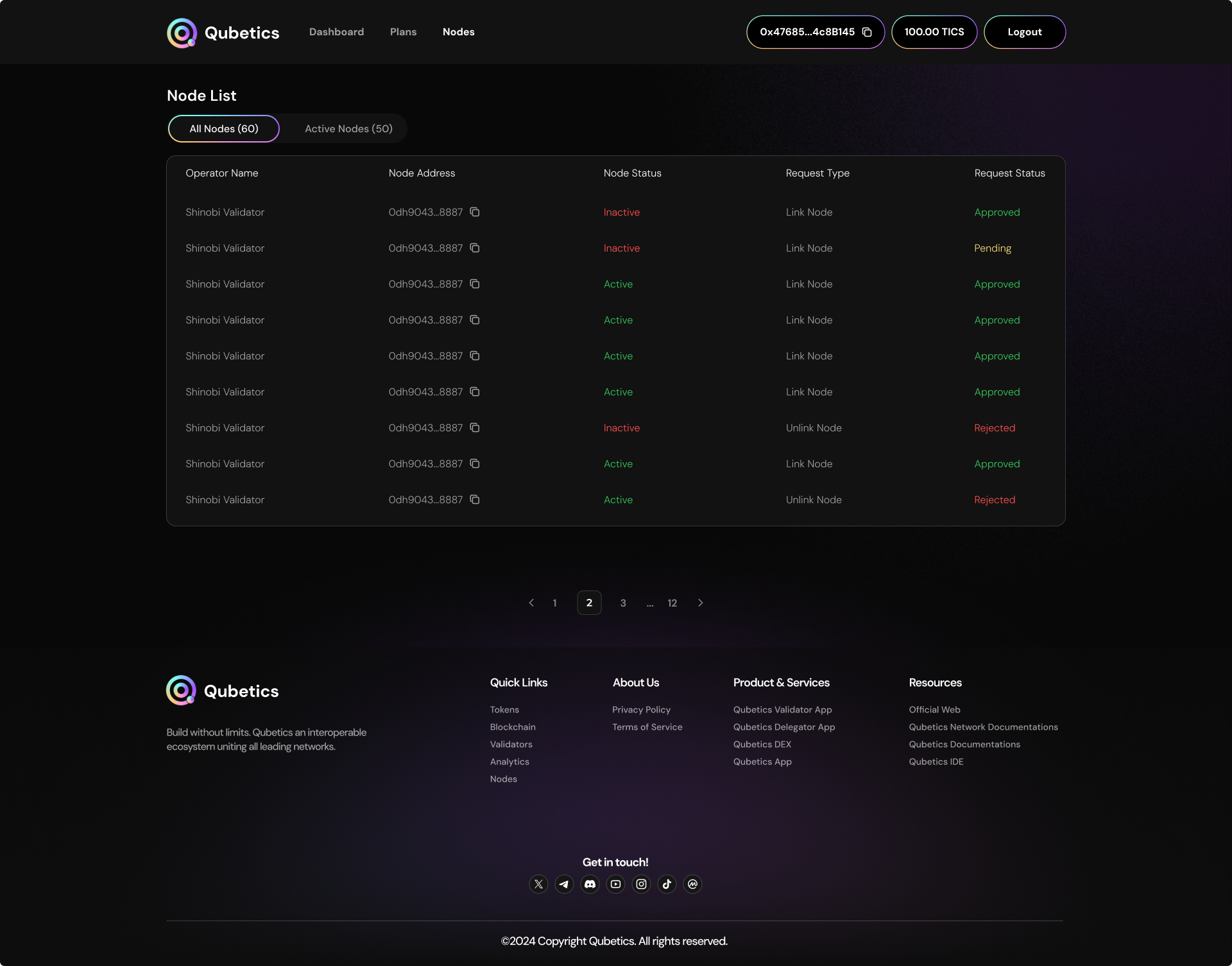
| Section | Description |
|---|---|
| Node Filters | At the top of the Node List, providers can toggle between three categories:
This filtering helps providers quickly focus on the nodes they need to monitor. |
| Node List Table (All Tab) | The main table displays detailed information about each node in the ecosystem. Each row represents a node and includes the following fields:
|
| Node Monitoring | The Status column is especially important for network health monitoring.
The provider can use this view to identify and troubleshoot inactive nodes quickly. |